Map Manager
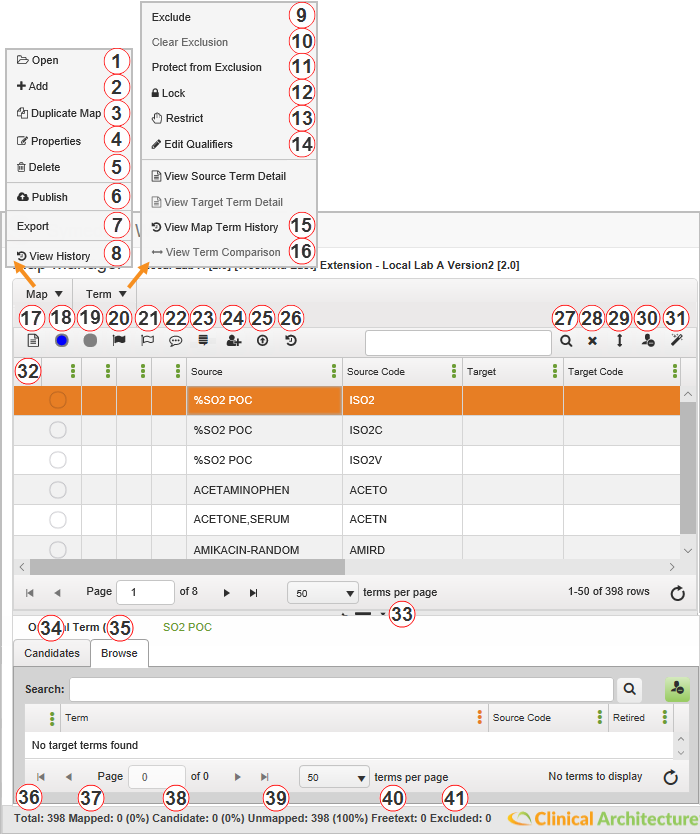
Use Map Manager to view map and map term information and utilize resources to determine term mappings. To access, double-click a map within the Waypoint Dashboard.
Please Note: Many of the Map Manager menu and toolbar options described in the item list table below are also available by right-clicking on a selected record within the grid.
See the following procedures associated with Map Manager:
|
Item |
Description |
|
1 |
Open — Click to return to the Waypoint dashboard and select a new map. |
|
2 |
Add — Click to create a new map by setting map properties. |
|
3 |
Duplicate Map — Click to create a new version of an existing map. See the Duplicate Map topic for field descriptions. |
|
4 |
Properties — Click to view and/or modify map properties. See the Map Properties topic for field descriptions. |
|
5 |
Delete — Click to permanently remove a map from Waypoint and Symedical. Maps cannot be deleted when they are:
|
|
6 |
Publish — Click to push a copy of map term information into the Symedical runtime services. See the Publish Map topic for field descriptions. |
|
7 |
Export — Click to export map information into an Excel spreadsheet. |
|
8 |
View History — Click to view details for changes made in the selected map. See the Map History topic for field descriptions. |
|
9 |
Exclude — Click Exclude to exclude the term from the map statistics for mapped, candidate, unmapped, and free text counts. |
|
10 |
Clear Exclusion — Click Clear Exclusion to remove the Exclude status and the Protect from Exclusion status. |
|
11 |
Protect from Exclusion — Click to prevent the selected term from being assigned an excluded status based on a defined exclusion rule. |
|
12 |
Lock/Clear Lock — Click Lock to prevent the term’s current mapping status or target term mapping from being changed during map analysis. Click Clear Lock to remove the Lock status. |
|
13 |
Restrict/Clear Restrict — Click Restrict to indicate that the term should not be passed to an external system. For example, restrict a term to preserve patient privacy. Click Clear Restrict to remove the Restrict status. |
|
14 |
Edit Qualifiers — Click to open the Modify Qualifiers form to edit map qualifier values for a selected mapped term or multiple selected mapped terms. Alternatively, right-click the selected mapped term(s) and select Edit Qualifiers from the menu. Qualifier values may also be edited directly within the Map Manger grid by clicking within the qualifier field. See Editing Map Qualifier Values for more information. |
|
15 |
View Map Term History — Click to view details for the changes made to the selected mapping. See the Map Term History topic for field descriptions. |
|
16 |
View Term Comparison — Click to display a side-by-side view of the mapped source term and target term. To access, select the source term in the Source Term pane, and then double-click the target term within the Candidates pane. Alternatively, click the Term menu and then click View Term Comparison. See the Term Comparison topic for report details. |
|
17 |
View Term Detail — Click
See the Term Details topic for report details. |
|
18 |
Freetext Term — Click |
|
19 |
Unmap Term — Click |
|
20 |
Add Last Flag — Click |
|
21 |
Flag — Click |
|
22 |
Annotation — Click |
|
23 |
Note — Click |
|
24 |
Reviewer — Click |
|
25 |
Submit for Publication — Click |
|
26 |
Map Term History — Click |
|
27 |
Search — Enter criteria and click |
|
28 |
Reset Grid Filters — Click The search default returns a list of all maps. The grid default returns all columns to the grid. |
|
29 |
Reset Splitter — Click |
|
30 |
Reset Saved Grid Settings — Click |
|
31 |
Split Bar Orientation — Click |
|
32 |
Source Term Grid — Displays source and target term information. See Grid Items for column descriptions. |
|
33 |
Split Bar — Divides the Map Manager window. Move the split bar to view the Target Term grid. |
|
34 |
Candidates — Use to view Symedical-generated target term candidates and manually manage source term mappings. See the Map Manager Candidates Tab topic for field descriptions. |
|
35 |
Browse — Use to perform a text search in the target catalog and return terms for mapping to the source term. See the Map Manager Browse Tab topic for field descriptions. |
|
36 |
Total — Displays the sum of all source terms in the Source Term grid (including excluded terms). |
|
37 |
Mapped — Displays the count and percent of all included mapped terms. Additionally, if the source catalog contains incidence count information, displays the sum of mapped incidence count values and the sum of all incidence count values (for example, 138/158), along with the resulting percentage (for example, 87.34%). |
|
38 |
Candidate — Displays the total number of produced candidates and the percent of candidates of all included mapped terms. |
|
39 |
Unmapped — Displays total number of included terms that were not mapped and the percent of included terms that were unmapped. |
|
40 |
Freetext — Displays the total number of free-text terms and the percent of all included mapped terms. |
|
41 |
Excluded — Displays total number and the percent of excluded terms. |
| Not shown |
Incidence Count — A count of the number of times each term is used within a user-defined set of data. These values are imported into catalogs and can be utilized to prioritize mappings. The incidence count statistics are displayed at the bottom of the Map Manager form. |
 to review source or target term information, such as parse history, term history, properties, and a list of maps that the term appears in as a source or target term. The Term Details dialog can also be accessed through these methods:
 to set the selected term as Freetext, indicating that it is not expected to be mapped.
 to remove the selected term from the source and target term mapping.
 to assign the most recent flag used in the map grid.
 to assign a flag to the selected term. Terms can be flagged to indicate a status within the workflow. For example, terms can be flagged for review. Flags can also be set within the Modify Reviewer dialog. Flag sets are created in Symedical. See the
  to create or modify annotations and/or comments on the selected term in the Modify Annotations dialog. Annotations can also be set within the Modify Reviewer dialog. See the
  to create, view, or modify map term notes within the Manage Notes form. Term notes are used to save and share information (such as tracking outstanding issues) on particular terms, and can be used for back and forth conversation between two map reviewers. See the
  to assign a reviewer and flag to the selected mapping and create a review description within the Modify Reviewer dialog. See the
  to submit the mapping for publication.
 to view details for the changes made to the selected mapping. See the
  to initiate a Source Word Starts With search on source catalog terms.
  to return search and column filters to their default state without resetting persisted custom grid settings (displayed columns, sort order, and column order).
 to expand the Original Term section, which contains the Candidates and Browse tabs. See the
  to return all grid settings (including grid filters) to their default state. The search default returns a list of all maps. The grid default returns all columns to the grid.
 to orient the Candidates pane to the right-hand side or the bottom of the window.
The table below lists the Map Manager grid items in alphabetical order.
|
Column Name |
Description |
|
Algorithm |
Displays the name of the algorithm or enrichment rule used to generate mapping candidates. |
|
Annotation |
Presence of |
|
Exclusion Flag |
Presence of |
|
Flag |
Presence of flag (such as |
|
Last Published |
Displays the date and time of the most recent publication of the source term mapping. |
|
Locked |
Presence of |
|
Map Qualifiers |
Displays map qualifier values. If not displayed, click on the Source Term grid header, point to Columns, and then select a column with the label “Qual:” before the qualifier name. See Editing Map Qualifier Values for more information. |
|
Map Source |
Displays the mapping source for the term. Mappings can be set by Symedical, a user, or both. |
|
Mapping Status |
Displays the state of the source term as follows:
|
|
Note |
Displays |
|
Publish Difference |
Presence of |
|
Restricted |
Presence of |
|
Reviewer |
Displays the reviewer name assigned to the map term. Click the reviewer name to open Modify Reviewer. See the Modify Review, Modify Flag, and Modify Annotation topic for field descriptions. |
|
Source Domain |
Displays the domain of the map’s source catalog. |
|
Source Retired |
Presence of |
|
Source Term |
Displays the name of the source term contained in the map’s source catalog. Double-click the source term to view Term Details. |
|
Source Term Attributes |
Displays the value of a specific attribute for the source term. If not displayed, click on the Source Term grid header, point to Columns, and then select a column with the label “Source Attr:” before the attribute name. |
|
Submitted |
Presence of |
|
Target |
Displays the name of the target term contained in the map’s target catalog. Double-click the target term to view Term Details. |
|
Target Code |
Displays the source code for the target term, which may be used to uniquely identify the term throughout Symedical. This column appears when the catalog is defined as having a source code within Symedical. |
|
Target Domain |
Displays the domain of the map’s target catalog. |
|
Target Retired |
Presence of |
|
Target Term Attributes |
Displays the value of a specific attribute for the target term. If not displayed, click any column grid header, point to Columns, and then select a column with the label “Target Attr:” before the attribute name. |
 indicates notes or comments were created for the source term. Click on the icon to open the Annotation Editor. See the
  (Excluded) or
  (Exclusion Flag) indicates an exclusion status for the source term.
  ) indicates the source term has been flagged for attention or workflow. Hover over the icon for a value description. Click on the flag to open the Flag Editor. See the
  indicates that the term’s status or current mapped target term will not be re-processed during map analysis.
 indicates a mapped term.
 indicates a freetext term.
 indicates an unmapped term.
 if a map term has a note. Double-click to view, edit, or create a new term note in the Manage Notes form. See the
  indicates that the map term has been modified since the last published date.
 indicates that the source term should not be passed on to an external system.
 indicates a retired source term.
 indicates the source term has been submitted for publication.
 indicates a retired target term.