Getting Started
The Symedical® mapping solution enables a variety of data domains to be mapped to both standard and custom terminologies. Its mapping interface provides tools that easily evaluate candidate terms and consults other mappings within the domain to ensure consistent results. Symedical Waypoint provides a secure interface for you to interact and provide review feedback on Symedical mappings.
See the topics below to get started.
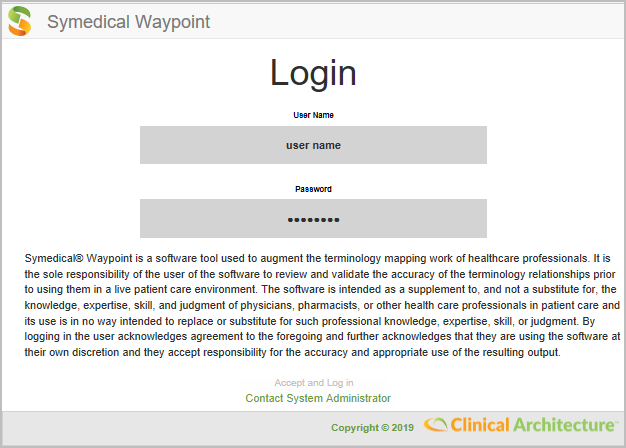
After entering the Waypoint URL address into your browser, log in to Waypoint using the user name and password provided by your Waypoint administrator. If you have any problems logging in or cannot remember your password, contact your administrator.
Please Note:
-
A contact administrator link can be added to the Login window to simplify the user’s ability to get help when needed.
-
You might not see the Login window, depending on authentication options set by your administrator.
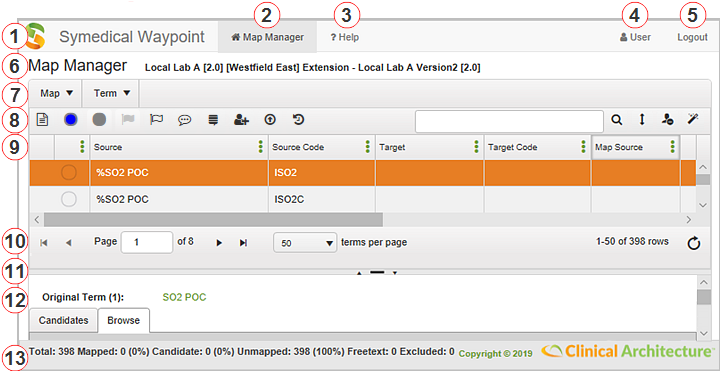
The following illustration shows a Waypoint window with common field and control elements called out.
|
Item |
Description |
|
1 |
Application Navigation — The application name and provides Waypoint application functionality, such as navigation, account, and logout. |
|
2 |
Home Tab — The Waypoint dashboard. |
|
3 |
Help — If an administrator email exists, a drop-down appears containing a link for contacting your system administrator as well as link to the Symedical Waypoint documentation. If no administrator email has been supplied, this opens the Symedical Waypoint documentation. |
|
4 |
Manage Account — Click your user name to change your Waypoint password. If your Waypoint access is configured to use your network password, you must contact your network administrator to change the password. |
|
5 |
Logout — Closes a user session on the Internet. If your Waypoint access uses your network password, the logout option is not applicable. Therefore, it is not displayed. |
|
6 |
Window Title — Your location in the application. |
|
7 |
Tab Menu — A subset of Waypoint’s functionality within the window. |
|
8 |
Toolbar — A set of controls that appear in context when a grid item is selected. Use these controls to perform actions on the grid item. For details on the toolbar icons, see Map Manager. |
|
9 |
Grid Column Header — The grid functionality of sorting, adding and removing columns, and filtering column values. |
|
10 |
Grid Navigation — The grid functionality of page range and refresh controls. |
|
11 |
Split Bar — A horizontal or vertical line that separates the Map Manager window into two panes and enables changes to the size of those panes. Click |
|
12 |
Subpane — The area of the window displayed by moving the split bar horizontally or vertically. |
|
13 |
Status Bar — Depending on the form you are in, displays information such as mapping status, Waypoint version number, or mapping percentages. |
 to change the orientation from horizontal to vertical and vice versa.
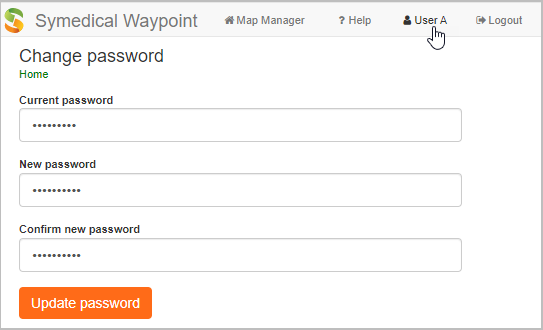
The change password functionality is not available when Waypoint is configured to use your network password to log on. If you have a Waypoint password, you can change it by clicking your user name on the application navigation bar. In the Account Management window that appears, enter your current password within the Current Password field. Next, enter your new password within the New Password and Confirm New Password fields and then click Update Password. Changing your password in Waypoint also changes your password within Symedical.
There are four ways to customize the data displayed within the Waypoint grids:
-
Filter to display records that meet selected criteria.
-
Hide or unhide Columns to display only the information pertaining to your current task.
-
Rearrange the order of the columns in the grid.
-
Sort to display information in the manner that allows you to better analyze your data.
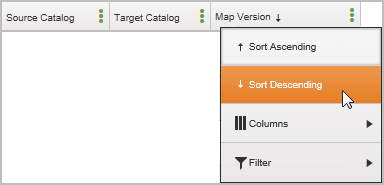
This functionality is contained within the grid column headers, as shown below. The items listed within the menu vary according to the selected column. Also, some columns cannot be sorted or filtered, such as calculated, attribute, qualifier, and external code columns.
Grid settings within the Map Manager Map and Term tabs persist until reset to their default state. See the following topics for information on resetting these grids:
The filtering functionality varies according to the data contained in the selected column in the dashboard and Map Manager. The following illustration shows a basic filter where users select a comparison operator and value to filter results on.
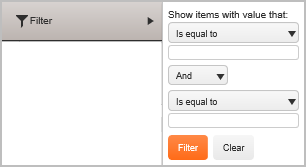
Depending on the data in the selected column, any of the following comparison operators may be available for selection.
|
User Comparison Operator |
To Filter For |
|
Contains |
Values that include specific text within the full string or value. |
|
Does Not Contain |
Values that do not include specific text. |
|
Ends With |
Values that end with specific text. |
|
Is Before |
Last published and last modified date values occur before the specific date. |
|
Is On or After |
Last published and last modified date values match the specific date or occur after the specific date. |
|
Is Equal To |
Values that match specific text exactly. |
|
Is Not Equal To |
Values that do not match specific text. |
|
Starts With |
Values that begin with specific text. |
|
Word Contains |
Values that match anywhere within a catalog name, word, or description. |
|
Word Starts With |
Values that match at the beginning of a catalog name, word, or description. |
For optimal filtering performance, Clinical Architecture recommends setting filters in this order:
-
Set a direct term filter on a column such as Term Description, Source Code, Flag, or Map Status to first narrow the results.
-
Then apply "negative" attribute filtering logic such as Is Empty, Does Not Contain, or Not Equal To. Using "negative" attribute filtering logic without first setting a direct term filter slows the filtering response time, especially for large catalogs.
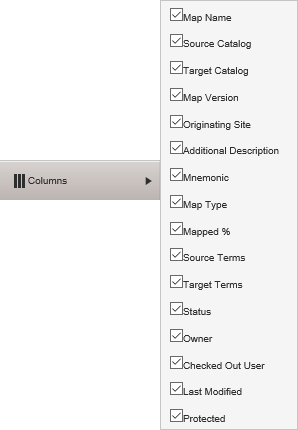
Click any heading to add/remove columns from the grid. Selected column names appear in the grid. Cleared column names are hidden. Default column headings are configurable.
Click Sort Ascending or Sort Descending to put a list of text values in alphabetical order (A to Z or Z to A), numbers (smallest to largest or largest to smallest), and dates and times (oldest to newest and newest to oldest). Unsorted defaults the grid to its default state.
|
Value Type |
Ascending/Descending |
Order |
|
Text |
Ascending |
A to Z |
|
Text |
Descending |
Z to A |
|
Numbers |
Ascending |
smallest to largest |
|
Numbers |
Descending |
largest to smallest |
|
Dates and Times |
Ascending |
oldest to newest |
|
Dates and Times |
Descending |
newest to oldest |
Searching in Waypoint enables maps and map terms to be found quickly based on entered keywords. Waypoint provides a simple search that compares map or map term names to the entered text and displays a record when criteria is found. The search type available depends on the data you wish to retrieve:
-
Within the dashboard, map searches are performed using the Source or Target Catalog Name Contains search. This search compares source or target catalog names to the entered text and displays a record when criteria is found somewhere in the source or target catalog name.
-
Within Map Manager, source term searches are performed using the Source Word Starts With search. This search compares words within source catalog terms to the entered text and displays a record when criteria is found at the beginning of a word.
-
Within the Browse tab, target term searches are performed using the Target Catalog Term Word Starts With search. The search compares words within target catalog terms to entered text and displays a record when criteria is found at the beginning of a word.
To search, enter words, phrases, or characters in the search box and then click  to initiate the search. Click
  to remove search criteria and return the grid to default settings.